


Your donation form breaks for screen readers at the credit card field. The donor using voice navigation software can't select monthly giving. Another supporter abandons the form entirely because the error messages disappear before they can read them. Meanwhile, your legal team keeps asking about GDPR compliance and you're pretty sure your confirmation emails don't match what donors actually agreed to.
Building an accessible donation form isn't just about adding alt text and calling it done. After helping dozens of nonprofits fix their broken donation flows, the same problems show up everywhere: forms that technically meet WCAG standards but still frustrate donors, consent language that lawyers love but donors ignore, and verification processes that catch fraud but also block legitimate gifts.
Why Most Nonprofit Forms Fail Accessibility Without Knowing It
Last month, a food bank discovered their donation form had been blocking screen reader users for eight months. Not completely blocking them—that would've been obvious. The form worked fine until donors hit the "review donation" step, where a modal popup appeared that keyboard users couldn't close. They'd rebuilt their entire donation page three times that year, but nobody caught this because their testing stopped at the donation amount field.
The really painful part? They'd actually hired an accessibility consultant who ran automated tests and gave them a passing grade. Those automated tools catch maybe 30% of real accessibility issues. The consultant never tested with actual assistive technology, never tried completing a donation with just a keyboard, never checked what happens when JavaScript fails to load.
Most nonprofits test their forms like this:
-
Run an automated checker (catches obvious stuff)
-
Have someone internally click through once
-
Check that donations process correctly
-
Ship it
What actually needs testing:
-
Complete the entire flow using only keyboard navigation
-
Test with screen readers on both desktop and mobile
-
Try donating with JavaScript disabled
-
Check form behavior at 200% zoom
-
Verify all error states are announced properly
-
Test with voice navigation software
-
Ensure focus management works throughout
A wildlife conservation group recently showed me their "accessible" form that scored 98% on automated tests. When we tested with real users, three out of five couldn't complete donations. The automated tools missed that their error messages used color alone to indicate problems, their donation amount buttons weren't actually buttons (just styled divs), and their confirmation page auto-redirected before screen readers could announce the success message.
The WCAG Basics That Actually Matter for Donation Forms
Forget memorizing every WCAG guideline. For donation forms, about twelve specific requirements cause 90% of accessibility failures. Not the obscure edge cases—the fundamental stuff that breaks donations every day.
Simplify donor management and fundraising workflows.
Givioly helps you organize campaigns, engage donors, and maximize fundraising impact seamlessly.
- Unified donor profiles
- Real-time donation tracking
- Automated impact reporting
No credit card required
Keyboard Navigation Must Work Everywhere
Every interactive element needs to be reachable with Tab key. This sounds basic until you realize most custom dropdown menus, fancy payment selectors, and those nice-looking amount buttons don't work with keyboards at all. A performing arts nonprofit had beautiful circular donation amount selectors that looked perfect but were completely invisible to keyboard users. They only discovered this after a major donor complained they couldn't give their annual gift.
Test this yourself: unplug your mouse and try completing your donation form. Can you select a donation amount? Choose monthly giving? Enter payment info? Submit the form? Most can't.
Error Messages Need Three Things
-
Be programmatically associated with the problem field
-
Persist until the user fixes the issue
-
Announce immediately to screen readers
That donation form that says "Please correct errors above" in red text at the top? Screen reader users never know which fields have problems. The form that shows errors for three seconds then fades them out? Users with cognitive disabilities can't process them fast enough.
Here's what works: inline error messages directly below each field, announced immediately when they appear, staying visible until corrected.
Labels and Instructions Before Fields
A youth services nonprofit increased completed donations by 22% just by moving all their field labels above the inputs instead of using placeholder text. Placeholder text disappears when users start typing, leaving them unsure what information goes where. Users with short-term memory issues, attention disorders, or anyone multitasking loses context immediately.
Put labels above fields. Put format requirements (like "MM/DD/YYYY") in permanent help text below. Never rely on placeholder text for critical information.
Color Can't Be the Only Indicator
The number of donation forms that show errors only through red borders or success only through green checkmarks would amaze you. Roughly 8% of men and 0.5% of women have some form of color blindness. That's potentially thousands of your donors who can't tell if their donation processed or failed.
Add icons, text labels, or pattern changes alongside color. A red border alone doesn't work. A red border with an X icon and "Error: Invalid card number" works for everyone.
Consent Language Templates That Lawyers and Donors Both Understand
Your legal team sends you three paragraphs of consent language that sounds like a software terms of service. Your donors see that wall of text and either skip it entirely or abandon the form. There's a middle ground that keeps you compliant without scaring away supporters.
The Three-Layer Consent Approach
Layer 1: The simple version donors actually read "We'll email you a receipt and occasional updates about our work (usually monthly)"
Layer 2: The specific permissions they're granting
-
Email receipt for this donation ✓
-
Monthly newsletter about our programs ✓
-
Occasional appeals (no more than 6 per year) ✓
Layer 3: The legal requirements (linked but not blocking)
"Details about data handling | Unsubscribe anytime | Privacy policy"
An environmental nonprofit switched from a 147-word legal consent block to this three-layer approach. Donation completion went up 8%, but more importantly, unsubscribe rates dropped by half because donors actually knew what they'd signed up for.
Geographic-Specific Requirements
GDPR isn't just for European nonprofits. If you accept donations from EU residents, you need explicit consent. California's CCPA has similar requirements. Canada's CASL affects email permissions.
-
Explicit opt-in checkboxes (not pre-checked)
-
Clear description of what they're agreeing to
-
Easy way to withdraw consent
-
Link to full privacy policy
Pre-checked boxes seem harmless but can trigger significant fines. A health services nonprofit got hit with a GDPR complaint because their "send me updates" box was checked by default. The fine was small, but fixing their entire consent system took months.
Match Your Confirmations to Your Consent
The consent language on your form needs to match exactly what you do afterward. If the form says "occasional updates," but you email weekly, you've broken the agreement. If donors agree to "program updates" but you send political advocacy emails, that's a violation.
Document exactly what each consent option means:
-
"Receipt"
One transactional email immediately after donation
-
"Monthly updates"
Newsletter on first Tuesday of each month
-
"Appeal emails"
Maximum 6 per year, minimum 45 days apart
-
"Event invitations"
Only for events in donor's geographic area
A social services nonprofit discovered they'd been emailing 400+ donors who'd explicitly opted out of advocacy alerts because their consent tracking lived in disconnected spreadsheets. Automated consent management would've prevented those violations and the trust damage that followed.
Verification Fields That Prevent Fraud Without Blocking Donors
Every verification field you add reduces conversion. But every fraudulent donation costs you processing fees, chargeback penalties, and hours of reconciliation work. The balance point sits at around three to four verification checks for most nonprofits.
The Minimum Viable Verification Set
-
ZIP/Postal Code Verification Match the billing ZIP to the card. This catches most casual fraud without bothering legitimate donors. A disaster relief org reduced fraudulent donations by 73% just adding ZIP verification.
-
Email Confirmation Field Not email verification links—those kill conversion. Just make donors type their email twice. Stops typos that cause receipt failures and helps identify suspicious patterns (fraudsters often use throwaway emails).
-
Honeypot Fields Add a hidden field that humans can't see but bots fill out automatically. If it contains data, block the submission. Name it something tempting like "email2" or "phone." This stops most bot attacks without any donor friction.
-
Velocity Checking Flag (don't block) when the same IP makes multiple donations quickly. Legitimate donors sometimes give multiple gifts, but 10 donations in 5 minutes signals fraud.
What Not to Verify
Phone number verification kills mobile donations. Those SMS confirmation codes sound secure, but nearly 40% of donors abandon when asked to switch devices or apps.
CAPTCHA systems block more legitimate donors than fraudsters. An education nonprofit removed their CAPTCHA and saw donation completion jump 18% with no increase in fraud. Modern bot detection works better than making humans prove they're human.
Address verification beyond ZIP/postal code causes problems for international donors, people using work addresses, or anyone in new developments. Unless you're shipping physical goods, skip full address verification.
The Step-by-Step Testing Protocol
Testing an accessible donation form requires systematic checking, not random clicking around. This protocol catches the issues automated tools miss.
Week Before Launch Testing
Day 1: Structure Testing
-
Validate HTML (W3C validator)
-
Check heading hierarchy (h1 → h2 → h3, no skipped levels)
-
Verify form labels connect to inputs
-
Confirm error messages associate with fields
-
Test without CSS (does content still make sense?)
Day 2: Keyboard Testing
-
Tab through entire form
-
Verify focus indicators visible
-
Test all interactive elements work with Enter/Space
-
Check tab order matches visual order
-
Ensure no keyboard traps
-
Test modal/popup escape routes
Day 3: Screen Reader Testing
-
NVDA on Windows (free, most common)
-
JAWS if available (most feature-complete)
-
VoiceOver on Mac/iOS
-
TalkBack on Android
-
Test each major form section
-
Verify error announcements
-
Confirm success messages read
Day 4: Visual and Cognitive Testing
-
200% zoom (everything still usable?)
-
High contrast mode
-
Test with CSS disabled
-
Check color contrast ratios (4.5
1 minimum)
-
Verify errors work without color
-
Test with browser extensions that block animations
Day 5: Stress Testing
-
Slow connection (does anything break?)
-
JavaScript disabled (graceful fallback?)
-
Autofill testing (fields populate correctly?)
-
Session timeout behavior
-
Back button testing (data persists?)
-
Multiple tab testing (session conflicts?)
| Testing Day | Tasks |
|---|---|
| Day 1 | Validate HTML (W3C validator); Check heading hierarchy (h1 → h2 → h3, no skipped levels); Verify form labels connect to inputs; Confirm error messages associate with fields; Test without CSS (does content still make sense?) |
| Day 2 | Tab through entire form; Verify focus indicators visible; Test all interactive elements work with Enter/Space; Check tab order matches visual order; Ensure no keyboard traps; Test modal/popup escape routes |
| Day 3 | NVDA on Windows (free, most common); JAWS if available (most feature-complete); VoiceOver on Mac/iOS; TalkBack on Android; Test each major form section; Verify error announcements; Confirm success messages read |
| Day 4 | 200% zoom (everything still usable?); High contrast mode; Test with CSS disabled; Check color contrast ratios (4.5:1 minimum); Verify errors work without color; Test with browser extensions that block animations |
| Day 5 | Slow connection (does anything break?); JavaScript disabled (graceful fallback?); Autofill testing (fields populate correctly?); Session timeout behavior; Back button testing (data persists?); Multiple tab testing (session conflicts?) |
Monthly Verification Routine
After launch, test monthly because updates break things:
First Monday Monthly Check:
-
Complete donation with keyboard only (10 minutes)
-
Run automated accessibility scan (5 minutes)
-
Check one random error state (5 minutes)
-
Verify consent language matches current practice (5 minutes)
-
Test on one random mobile device (10 minutes)
Quarterly Deep Test:
-
Full protocol from launch testing
-
Add new assistive technology if available
-
Test with actual users if possible
-
Review analytics for abandonment patterns
-
Check compliance requirements for changes
The "Someone Complained" Emergency Protocol
-
Immediate Triage (30 minutes) - Reproduce the issue - Identify affected user groups - Assess donation impact - Document everything
-
Quick Fix or Workaround (2 hours) - Can you fix immediately? - If not, create alternative donation method - Contact the person who reported it - Plan proper fix timeline
-
Root Cause Analysis (after fix) - Why didn't testing catch this? - What similar issues might exist? - How do we prevent recurrence? - Update testing protocol
If someone reports an accessibility issue, follow the triage, provide immediate workarounds if needed, and update your testing protocol to prevent repeats.
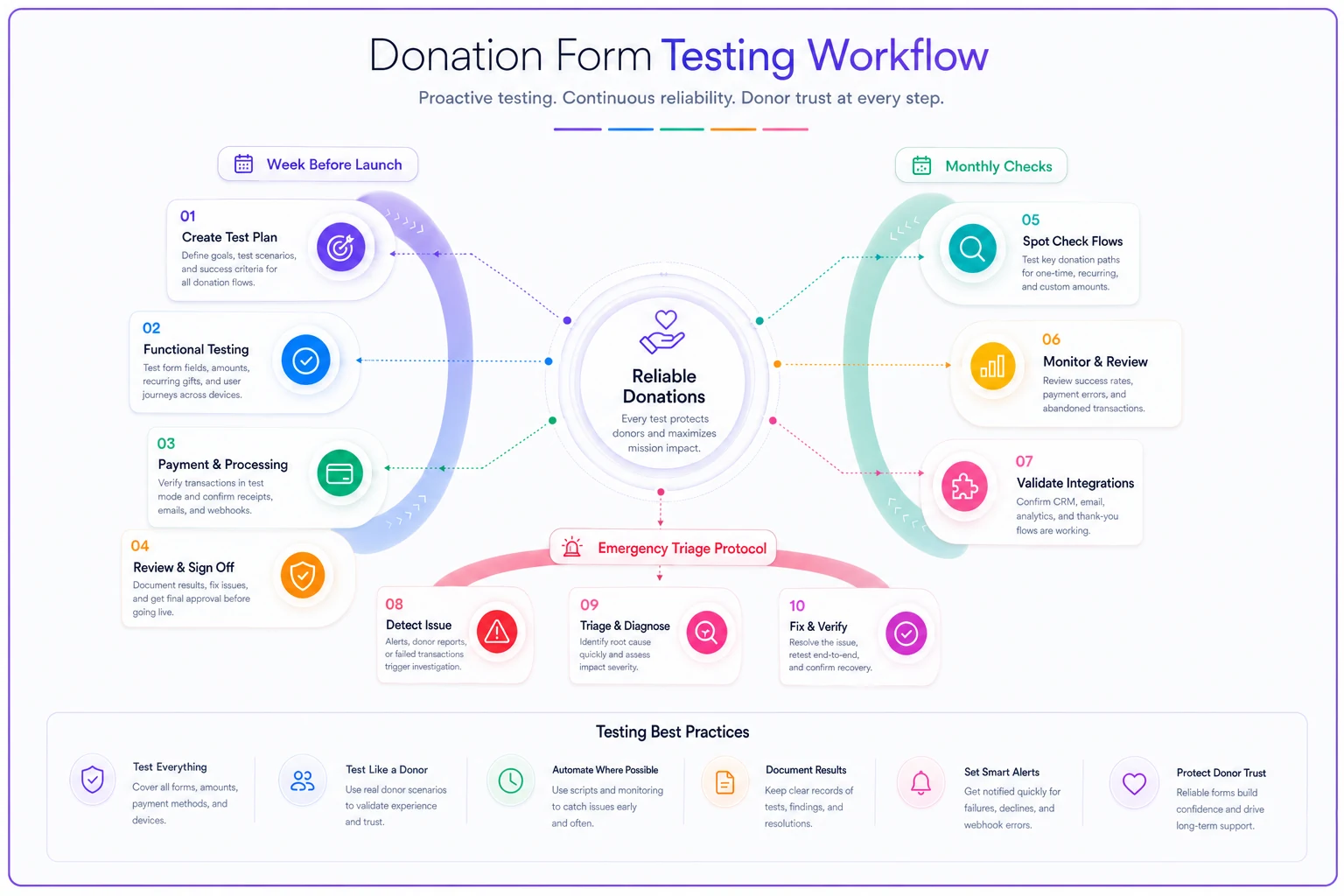
This visual shows the flow from pre-launch daily checks to monthly and quarterly routines, plus the emergency protocol steps.
Where AI Automation Actually Helps (And Where It Doesn't)
AI-powered operational software can handle the testing and monitoring burden that makes accessibility compliance overwhelming for small nonprofits. But you need to understand what it genuinely automates versus what still needs human judgment.
Automated Testing That Works
Continuous accessibility monitoring catches regression issues before donors do. When your team updates the donation form, AI-powered testing immediately checks if keyboard navigation still works, if color contrast ratios dropped below standards, or if new JavaScript broke screen reader compatibility. An animal shelter avoided a major accessibility failure when their automated testing caught that a payment processor update broke keyboard navigation—before any donors encountered it.
AI automation excels at pattern recognition across thousands of form interactions. It identifies when certain device/browser combinations consistently fail, when specific user paths lead to abandonment, or when error messages appear but don't get corrected. These patterns would take months of manual analysis to spot.
Consent Management Automation
Tracking what each donor actually consented to becomes impossible at scale without automation. AI-enhanced systems maintain audit logs of exactly what consent language donors saw, when they agreed, and what communications they've received since. When consent requirements change (and they change constantly), the system automatically flags donors who need re-consent based on their original agreement date and geographic location.
A social services nonprofit discovered they'd been emailing 400+ donors who'd explicitly opted out of advocacy alerts because their consent tracking lived in disconnected spreadsheets. Automated consent management would've prevented those violations and the trust damage that followed.
Where Human Judgment Remains Critical
AI can't determine if your consent language actually makes sense to donors. It can't decide if your verification requirements balance security with donor experience. It can't tell you if your error messages sound helpful or condescending.
Automated tools also miss context that's obvious to humans. They'll flag a donation form as "failing" accessibility because decorative images lack alt text, while missing that your payment section completely breaks for voice navigation users. They'll verify your consent checkboxes meet GDPR requirements while ignoring that the language reads like a legal contract.
The sweet spot combines AI-powered operational software for continuous monitoring, pattern detection, and compliance tracking with human review for user experience, language clarity, and strategic decisions about the donation experience.
Common Pitfalls After Implementation
Even with perfect implementation, accessible donation forms break over time. These failures happen gradually, often invisibly, until someone important can't donate.
The Plugin Update Disaster
Your donation form works perfectly. Then someone updates a plugin, payment processor, or even WordPress core, and suddenly keyboard users can't select donation amounts. An arts nonprofit lost $12,000 in monthly sustainer signups over six weeks because a payment plugin update changed how focus management worked. Their automated testing only checked for successful payment processing, not the full accessibility flow.
Set up regression testing that runs the complete accessibility protocol after any update. Not just checking if donations process, but whether every accessibility feature still functions.
The "Quick Fix" Degradation
Your development volunteer makes a "quick fix" to add a new donation designation. They don't mean to break accessibility—they just copy-pasted from another section and modified it. Now you have duplicate IDs breaking screen reader navigation, but donations still process fine so nobody notices for months.
Every change, no matter how small, needs accessibility testing. Create a simple checklist developers must complete before pushing changes live. The five-minute check prevents the five-hour fix later.
Mobile Updates Breaking Everything
Your form passes every desktop accessibility test. Then Apple updates iOS, and suddenly VoiceOver users can't complete donations on iPhones. Or Chrome updates their Android version, and your carefully tested touch targets no longer work.
Mobile accessibility breaks more often than desktop because the technology updates more frequently and testing is harder. Schedule monthly mobile accessibility checks, not just mobile functionality tests.
Making This Sustainable for Small Teams
Running comprehensive accessibility testing seems overwhelming when you're already juggling sixty other priorities. Here's how nonprofits with tiny teams keep their donation forms accessible without burning out.
The Rotating Responsibility Model
Instead of one person owning all accessibility testing, rotate through team members monthly. January: Development volunteer runs keyboard tests. February: Marketing coordinator checks screen reader basics. March: Executive director tries completing a donation with just their phone.
This spreads knowledge throughout your team and prevents single points of failure. When your solo web person leaves, accessibility knowledge doesn't walk out with them.
The Donor Volunteer Program
Recruit donors who use assistive technology as volunteer testers. A disability rights nonprofit created a "Donation Experience Panel" of five supporters who test quarterly in exchange for early event tickets and nonprofit swag. They catch issues no automated tool finds because they're actually using the assistive technology daily.
Don't just ask them to test—give them specific scenarios: "Try making a memorial gift using your screen reader" or "Attempt to set up monthly giving using voice navigation." Specific tasks reveal specific problems.
The Incremental Improvement Approach
Don't try fixing everything at once. Pick one accessibility issue monthly and fix it properly. This month: keyboard navigation. Next month: error message announcements. Following month: color contrast.
A homeless services nonprofit improved their accessibility score from 62% to 94% over eight months using this approach, without any major rebuilds or significant budget allocation.
Building an accessible donation form isn't about perfection—it's about systematic improvement and consistent testing. Most accessibility failures aren't technical limitations but oversight and assumption. We assume donors can see color differences, use a mouse, read quickly, and understand legal jargon.
The checklist and protocols here came from watching hundreds of nonprofits struggle with the same issues. The food bank whose form broke for eight months. The conservation group whose beautiful design excluded keyboard users. The health nonprofit that got fined for pre-checked consent boxes. Start with the basics: keyboard navigation, clear error messages, proper labels, and simple consent language. Test systematically using the protocol outlined above. Set up monitoring to catch when things break. Most importantly, remember that accessibility isn't a feature you add—it's fundamental to your mission of serving
Ready to elevate your fundraising efforts?
Join 2,000+ nonprofits using Givioly to save time, increase donations, and build lasting donor relationships.